
ThunderFace 4K Duo+ USER GUIDE
Introduction
QTAKE Pro is the most advanced software application designed and developed for video assist professionals. It is used to log, capture, playback, edit, and process video output of Digital Cinema Cameras as well as traditional film cameras with a video tap.
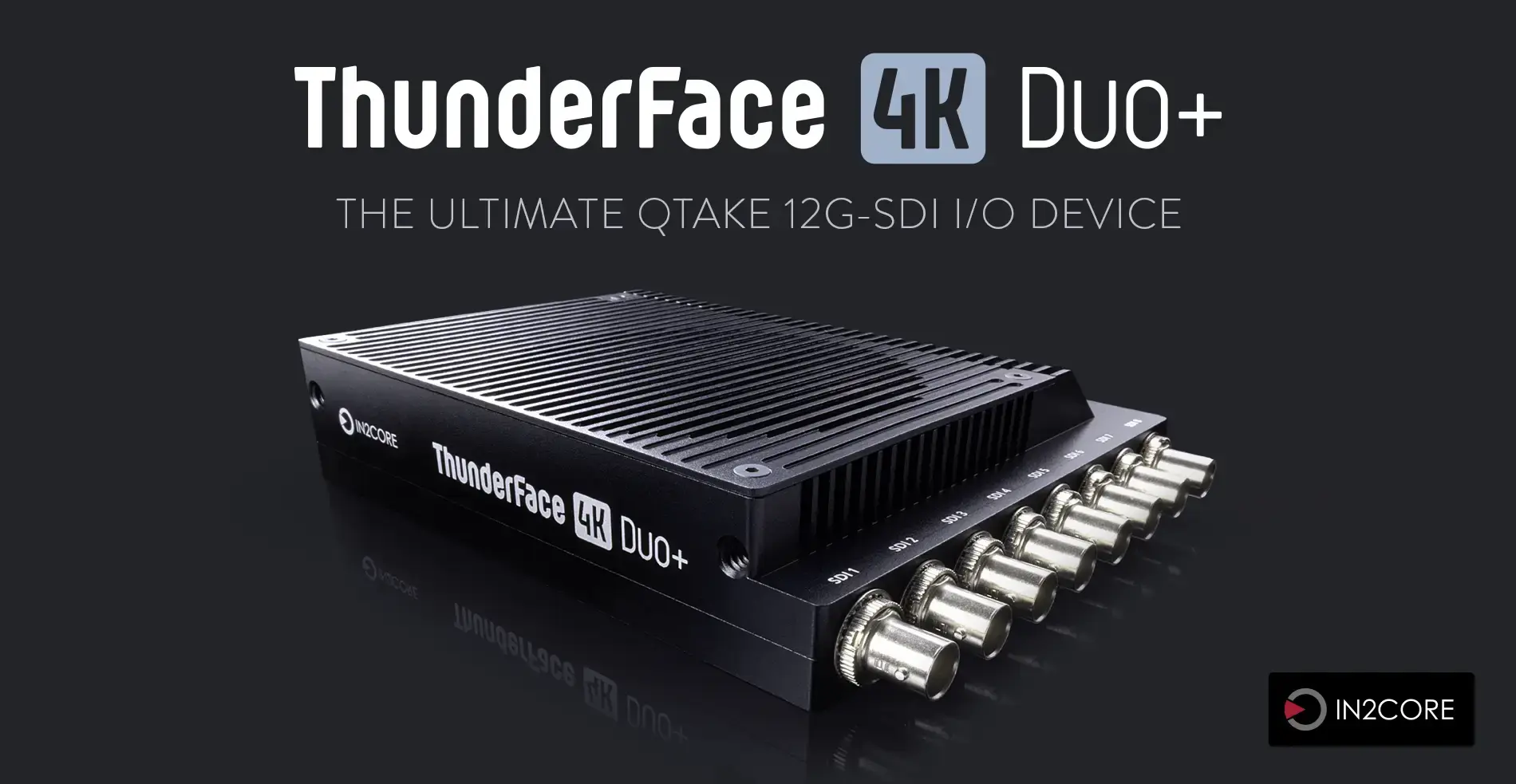
ThunderFace 4K Duo+ combines input and output into a single device, eliminating the need for separate capture cards and output hardware.
It is designed for professional film and broadcast workflows where predictable signal handling, frame-accurate metadata, standard output frame rates, and low-latency monitoring are required.
HOW IT WORKS
ThunderFace 4K Duo+ converts the host computer’s DisplayPort video output to professional SDI outputs and makes its SDI inputs available to QTAKE through the same device connection. With IN & OUT firmware installed, the physical connector assignment is fixed:
- SDI connectors 1-4 are outputs
- SDI connectors 5-8 are inputs
GPU OUT settings configure the signals routed to connectors 1-4; they do not reassign connectors 5-8 as outputs. To use the device in OUTPUT ONLY operation, install the corresponding firmware using the Firmware Update procedure.
SYSTEM REQUIREMENTS
The following are minimum hardware and software system requirements:
- Mac computer with Apple silicon with USB-C output running macOS 12.3 up to 15.3.2
- QTAKE Pro version 2.3 or later
QTAKE Pro GUI DESCRIPTION IN THIS USER GUIDE DOES NOT APPLY TO OLDER VERSIONS OF QTAKE!
Hardware
TECHNICAL SPECIFICATIONS
- Host Video Connection:
- DisplayPort with embedded audio
- Host video formats:
- UHD - 23.976/24/25/29.97/30/47.952/48/50/59.94/60 fps
- 2x UHD - 23.976/24/25/29.97/30/47.952/48/50/59.94/60 fps
- 4K - 23.976/24/25/29.97/30/47.952/48/50/59.94/60 fps
- 2x 4K - 23.976/24/25/29.97/30/47.952/48/50 fps
- SDI Video Input:
- IN & OUT firmware
- 4x BNC (75 Ohm impedance), connectors 5-8
- Up to four independent HD or two independent UHD/4K input feeds
- Output Only firmware
- no inputs
- IN & OUT firmware
- SDI Video Output:
- IN & OUT firmware
- 4x BNC (75 Ohm impedance), connectors 1-4
- 4x 3G-SDI - SDI 1-4
- 2x 12G-SDI - SDI 1 & SDI 3
- Output Only firmware
- 8x BNC (75 Ohm impedance), connectors 1-8
- 8x 3G-SDI - SDI 1-8
- 2x 12G-SDI - SDI 1 & SDI 5
- 1x12G-SDI + 4x 3G-SDI - SDI 1 + SDI 5-8
- See SDI OUTPUT MODE for physical output mapping
- IN & OUT firmware
- Reference Input:
- HD-BNC (miniBNC) connector for HD Tri-level sync
- Audio Input/Output:
- DisplayPort embedded audio, up to 8 channels
- 3.5mm audio jack (TRRRS) with the following configurations:
- 2x balanced output
- 2x balanced input
- 1x balanced output + 1x balanced input
- Control
- QTAKE Pro 3.0 or later and Apple Silicon hardware
- QTAKE Monitor 5.2 or later (contact us for beta access) and an iPad Pro
- Data Ports
- TB3 class (USB-C-type connector) for connecting to the host computer
- USB-C connector for connecting external USB devices
- Enclosure:
- Lightweight design
- Weight: 650 g (1.43 lb)
- 170 x 141 x 19-34 mm (6.69” x 5.55” x 0.75-1.35”)
- 4 × 1/4” mounting holes on the sides
- multi-color Status LED
- Power:
- USB-C connector with PD support (20V/5A 100W profile)
- 100W USB-C PD power supply included (100-240 VAC, 50-60Hz)
Simultaneous SDI input and output bandwidth depends on the active formats, frame rates, and number of streams. High-bandwidth combinations, especially at high frame rates, may approach practical transfer limits and cause dropped frames. If this occurs, reduce the active stream count, resolution, or frame rate.
The approved power supply is supplied with the product.
In case of damage or other power-related issues contact IN2CORE support.
FEATURES
- Single cable connection to Mac
- Zero-latency processing 1
- Input via PCI lane of the Data connection with embedded audio
- Up to two UHD/4K or four HD SDI input feeds
- Up to two UHD/4K or four HD SDI output feeds
- Simultaneous SDI input and output
- Metadata Support
- iPad Pro Compatibility
- Reference input for ext. sync (genlock) - Coming Soon
- Balanced analog audio input
- Progressive input
- Up to 60fps in supported formats
- SDI embedded audio
- SDI embedded timecode
- HDR and Dolby Vision metadata support
- USB control directly from QTAKE software
- Future-proof design upgradable by firmware
- Ultra-quiet, user-replaceable fan
Let's assume your input video signal is 1080p25fps. Set ThunderFace's required resolution to 25fps and your GUI display will be set to 50Hz automatically.
ThunderFace HDR OUTPUT
ThunderFace supports High Dynamic Range output. SDI Monitors with HDR payload detection will correctly set the colorspace and other HDR metadata when connected to ThunderFace.
BOX CONTENTS
ThunderFace 4K Duo+ package includes:
- ThunderFace 4K Duo+
- Power adapter
- USB-C to USB-C power cable
- USB-C to USB-C data cable
ThunderFace 4K Duo+ vs. ThunderFace 4K Duo vs. QOD+ Comparison
ThunderFace 4K Duo+ |
ThunderFace 4K Duo |
QOD+ |
|
|---|---|---|---|
| Single cable connection to Mac | Yes | Yes | - |
| Charges host computer | Yes | Yes | - |
| SDI Outputs |
|
|
Four HD SDI |
| SDI inputs |
|
- | - |
| Independent formats | - 1 | - 1 | Yes |
| Processing latency | Zero (GPU output) | Zero | 1 frame 2 |
| DisplayPort input with embedded audio | Yes | Yes | Yes |
| Reference input for genlocked output | Mini BNC | Mini BNC | BNC |
| Analog audio input | Balanced 2-channel analog audio input | Balanced 2-channel analog audio input | Unbalanced 2-channel analog audio input |
| Interlaced, progressive, or PsF output | Progressive | Progressive | Yes |
| Up to 60fps in supported formats | Yes | Yes | Yes |
| SDI embedded audio | Yes | Yes | Yes |
| SDI embedded timecode | Yes | Yes | Yes |
| HDR and Dolby Vision® metadata support | Yes | Yes | HDR support only |
| USB control directly from QTAKE software | Yes | Yes | Yes |
| Future-proof design upgradable by firmware | Yes | Yes | Yes |
| Fan | Ultra-quiet, user-replaceable fan | Ultra-quiet, user-replaceable fan | - |
| DIP switch control for standalone operation | - | - | Yes |
| Dimensions | 170 x 141 x 19-34 mm (6.69” x 5.55” x 0.75-1.35”) | 170 x 148 x 45mm (6,69 x 5,83 x 1,77") | 117 x 168 x 43mm (4.6 x 6.6 x 1.7") |
| Weight | 650g (1.43lb) | 1 170g (2.58lb) | 780g (1.72lb) |
| Case | Slim aluminum case | Rugged aluminum case | Rugged aluminum case |
| Power supply | 100W USB-C PD | 100W USB-C PD | 24W barrel |
| Host application compatibility | QTAKE Pro 3.x QTAKE Monitor 5.2 |
QTAKE Pro | QTAKE Pro legacy QTAKE |
| Upgrade options | New 2026 model | Upgradable to Duo+ | - |
2. Output latency is 2 frames when using pulldown removal.
ThunderFace Installation
General Installation
ThunderFace 4K Duo+ installation requires a few simple steps:
- Connect the Data cable to the Computer icon USB-C port on the ThunderFace and connect the other end to a USB-C port on your Mac
- Connect the Power cable to the port labeled POWER on the ThunderFace and the other end to the power adapter and power socket
- ThunderFace LED will turn green when the proper resolution is locked
- Start QTAKE Pro
- Update ThunderFace firmware to IN & OUT if not already installed
- Quit QTAKE, power-cycle ThunderFace and start QTAKE again
- On the next startup QTAKE recogniyes the IN & OUT firmware and offers ThunderFace driver first installation or update of an older driver
- Confirm the Driver installation, QTAKE minimazes and macOS Settings are automatically open
- Confirm the driver installation and allow ThunderFace Driver under the macOS Driver Extensions, macOS user password might be required
Data and Power cables are not interchangeable. Both cables are marked on each end, make sure to use the appropriate cables in order per the instructions above.
With IN & OUT firmware and its driver installed, QTAKE Pro recognizes ThunderFace 4K Duo+ as a video input device under Project Settings > Video Input.
QTAKE Monitor Lightweight Setup
QTAKE Monitor is a free iPadOS, iOS, macOS and visionOS application with a more limited feature set than QTAKE Pro and does not provide QTAKE Pro-style multiview.
When ThunderFace 4K Duo+ is connected to an iPad Pro go to device Settings > QTAKE Monitor app and allow the ThunderFace driver. Power-cycle the device and start QTAKE Monitor.
iPad Pro or simialr Apple device with ThunderBolt connection is required.
In a ThunderFace 4K Duo+ workflow, select an SDI input source for a View using SELECT VIEW SOURCE to load input from ThunderFace. QTAKE Monitor always output uses Views 1-4.
Recordings are stored in the application’s internal storage, with QTAKE Cloud and QTAKE Sync used for the applicable export workflows. See the Recording section in QTAKE Monitor User Guide for more information.
QTAKE Monitor cannot update ThunderFace firmware; perform firmware updates through QTAKE using the documented Firmware Update procedure.
NFR QTAKE Pro v3.x version can be used to update the ThunderFace firmware.
Powering the ThunderFace
Important Note on Power-up Sequence: When integrating the ThunderFace 4K Duo+ into a complex video assist rig with a master power button, it is crucial to ensure the unit receives a stable power supply during its initialization and operation. Powering on all components simultaneously can sometimes cause a brief power fluctuation, which may result in the ThunderFace’s serial communication failing, even if the unit appears to lock correctly with a green LED.
To avoid this, we recommend either using a power sequencer or manually powering on the ThunderFace as the last component in your rig. Always wait for the unit’s green LED status to be solid before launching QTAKE Pro.
A simple power cycle of the ThunderFace unit will resolve any issues that may occur.
ThunderFace Status
The RGB LED light indicates the ThunderFace operational state:
- Amber - steady - device is powered up, waiting for input signal
- Green - steady - device is locked to input signal
- White - steady - device is overheated and needs to be cooled down and power-cycled
- Purple - flashing - low power, power adapter is damaged, or unsupported power adapter is used
Operation
GENERAL OPERATION
When ThunderFace is plugged into the USB-C port of your Mac, macOS will detect it as an external monitor. You can verify that macOS has detected your ThunderFace in System Preferences -> Displays.
WARNING
When handling ThunderFace 4K Duo+, ensure the device is powered off by disconnecting the power cord first. This step prevents internal shortages when connecting or disconnecting the host data cable or SDI input and output cables.
QTAKE USB CONTROL
QTAKE controls the ThunderFace operation via the Data cable connection.
You can change ThunderFace settings in the TF & QOD toolbar of the FILE room.
The TF & QOD toolbar displays the following information:


Device Selector
When using two ThunderFaces or ThunderFace in combination with QOD+, the DEVICE Selector lets you choose the unit the TF & QOD toolbar controls.
If only one unit is connected to a Mac, the selector is grayed out. If multiple units are detected, the selector is enabled.

TF RESOLUTION
ThunderFace current input resolution.
Since today’s monitors’ processing capabilities are limited, to achieve zero latency, the GUI display’s frequency is set to match or be a multiple of ThunderFace fps when its resolution is set. If this automatic operation fails, you will get a pop-up message. Make sure to set ThunderFace fps to match the video input signal.
Let’s assume your input video signal is 1080p25fps. Set ThunderFace’s required resolution to 25fps and your GUI display will be set to 50Hz automatically.
Since macOS Night Shift and True Tone features affect GPU output, these are automatically disabled on QTAKE startup if ThunderFace or QOD are connected to prevent color differences.
To change the resolution, click the TF RESOLUTION area. In the pop-up window, choose the ThunderFace output configuration:
MONO and DUO identify output configurations; they do not identify ThunderFace 4K Duo and ThunderFace 4K Duo+ products. See SDI OUTPUT MODE for the physical connector mapping and mirrored output groups.
The FORMAT selector switches between UHD and 4K DCI formats.
Choose FPS to finish the resolution setting.
If you change the current resolution and confirm it by clicking the OK button, the TF RESOLUTION label changes to Setting… until the operation is successfully completed. During this time, the Resolution selector is disabled.

TF AUDIO
This button controls the audio input and embedded audio output. Your options are:
- DP - All SDI outputs utilize all eight available audio channels from the DisplayPort input.
- Audio In - Embedded analog line audio input in all SDI outputs.
MUTE
Mutes the audio output if DisplayPort audio is selected. Otherwise, the button is disabled.
AUDIO LEVEL
Adjusts the audio level output if DisplayPort audio is selected. Otherwise, the input field is disabled.
TEMPERATURE
ThunderFace internal temperature. ThunderFace will shut down FPGA if the internal temperature reaches 85 Celsius to prevent internal component damage. The LED will change light to steady white to indicate overheating. The device needs to cool down and be power-cycled.
FAN SPEED
The following fan speed options are available:
- Auto - Automatically sets the Silent fan speed while recording and hardware-based automatic fan speed while not recording.
- Silent
- Low
- Medium
- Fast
SERIAL NUMBER
ThunderFace serial number.
TEST PATTERN
This feature overrides the GPU OUT output with Test pattern color bars.
You can find this feature useful before shooting, when preparing the setup, to test the ThunderFace operation.
Depending on the TF RESOLUTION, the color bars will be output to all GPU OUTs.
There are two options:
- 75% Bars
- 100% Bars
UPDATE FIRMWARE
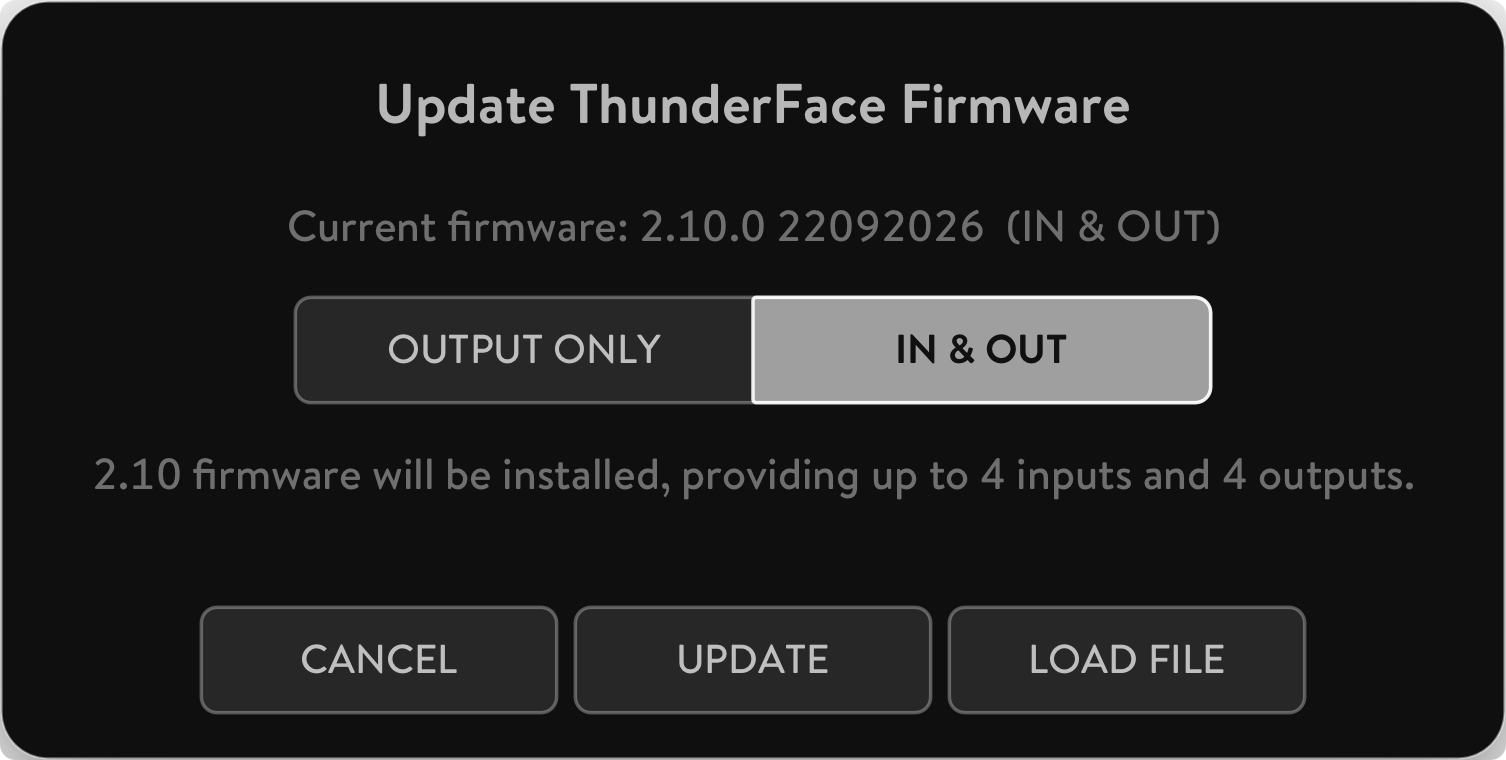
ThunderFace contains a programmable chip that you can upgrade to apply bug fixes or additional functionality. QTAKE is bundled with the latest firmware binary. Do not attempt to downgrade the ThunderFace by updating the firmware from an older version of QTAKE.
The update process is simple:
While ThunderFace is connected
* Navigate to the TF & QOD toolbar’s second page and click UPDATE FIRMWARE button.
* After successful completion of the process, quit QTAKE.
* Power-cycle ThunderFace.
* Launch QTAKE.
ThunderFace 4K Duo / Duo+ Firmware Modes
The ThunderFace 4K Duo family supports two operating configurations, depending on the installed firmware and hardware compatibility:
- ThunderFace 4K Duo (OUTPUT ONLY) - uses 1.x firmware and supports up to eight HD outputs.
- ThunderFace 4K Duo+ (IN & OUT) - uses 2.x firmware and supports up to four HD inputs and four HD outputs.
Upgrading ThunderFace 4K Duo to Duo+
Existing ThunderFace 4K Duo units are eligible for an upgrade to Duo+ functionality. Some first-generation units require a hardware modification by IN2CORE before they can support input functionality.Before installing the IN & OUT firmware on an existing ThunderFace 4K Duo, please contact us to confirm hardware compatibility.
On compatible hardware, after installing the IN & OUT firmware, QTAKE prompts you to install the required driver on its next launch. Follow the installation instructions and approve the driver in macOS System Settings when prompted. After completing the installation, power-cycle the ThunderFace device and restart QTAKE. The device will then be available as a video input device in Project Settings > Video Input.
RESET
This button performs a soft reset.
GPU OUT SETTINGS
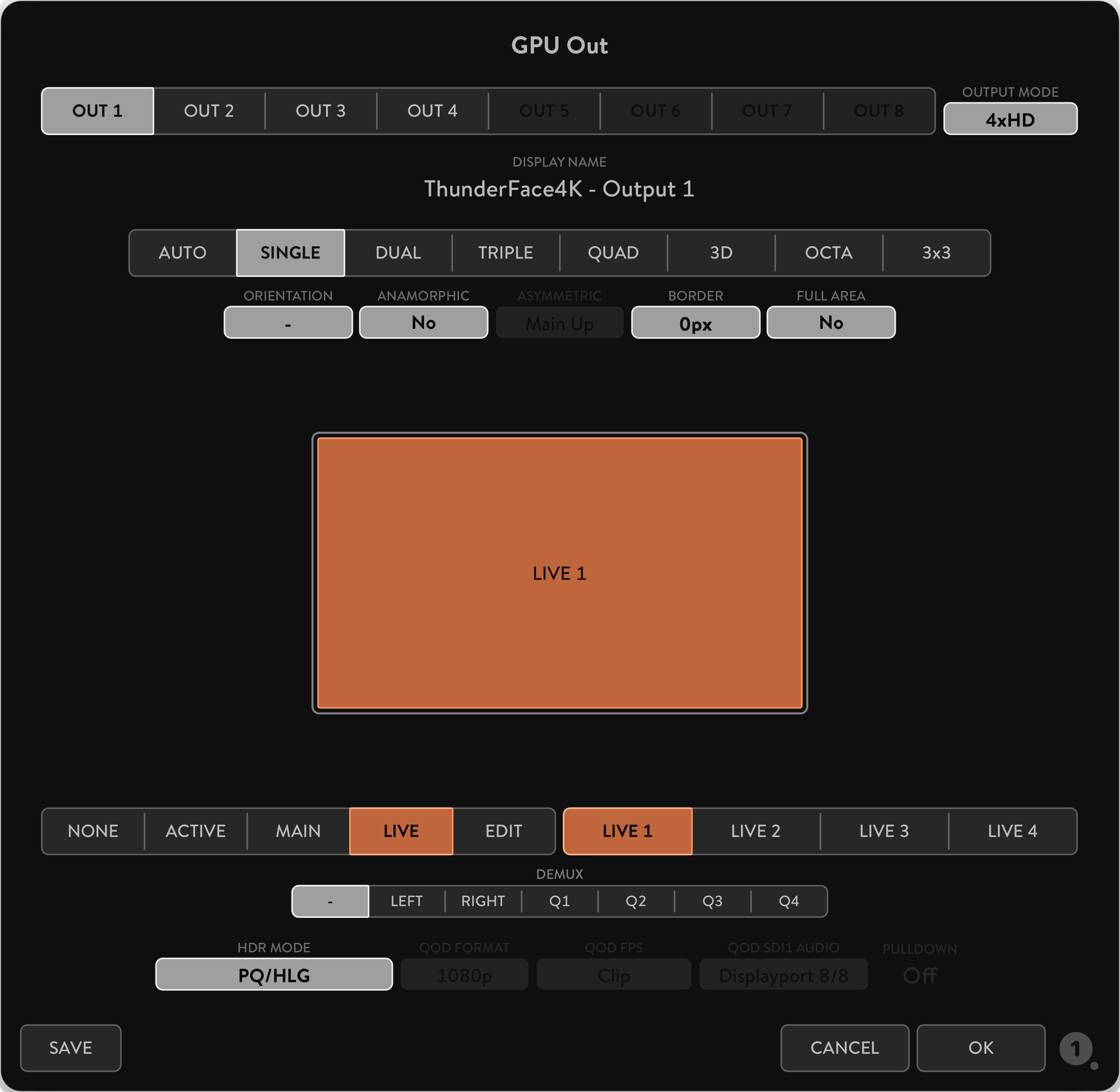
The GPU OUT window controls all output channels.
For the complete generic GPU OUT workflow, see the QTAKE Pro GPU OUT Menu.
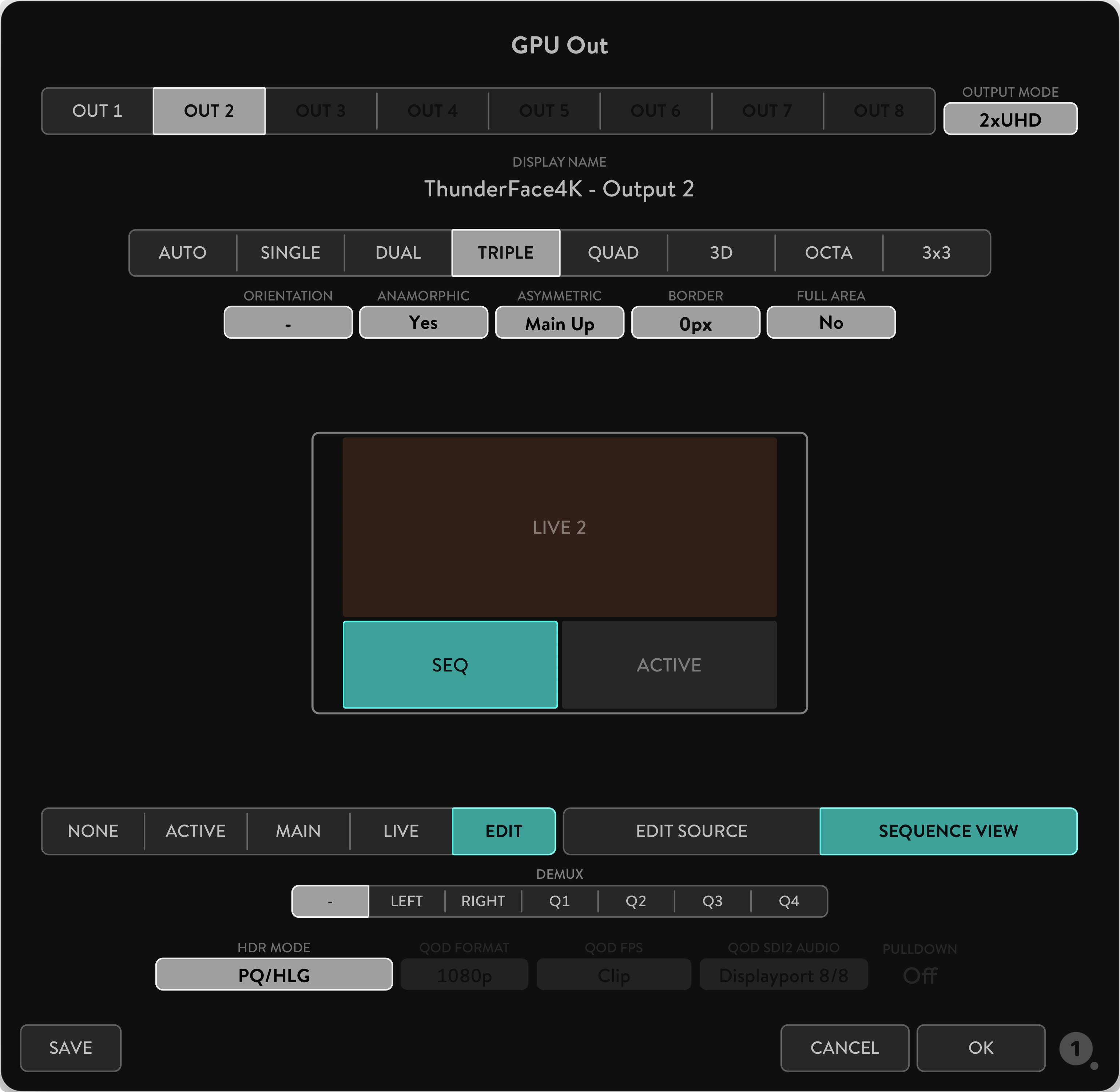
You can set each GPU OUT slot to a different LAYOUT MODE.
- AUTO Output layout follows the operator screen
- SINGLE Outputs the selected View in fullscreen
- DUAL Outputs two Views on a single output
- TRIPLE Outputs three Views
- QUAD Outputs four Views
- 3D Outputs stereoscopic output
- OCTA Outputs eight Views
- 3x3 Outputs 3x3 Views grid
When you set the layout mode to output multiple Views (DUAL, TRIPLE, …) you can set the content of each section independently. The BORDER value determines how much space is added between the Views. In the TRIPLE or QUAD View, you have the option of setting the ASYMMETRIC layout mode. One View occupies the majority of the screen space, allowing you to focus on a single View while still displaying the other Views.
When GPU OUT is set to the 3D layout, you can also set the 3D OUTPUT MODE to match the 3D input format that your monitor expects.
SINGLE EYE OUTPUT enables viewing of a single eye on a 3D monitor.
3D Stereoscopic video output
3D Output can be used with 3D monitors that support side-by-side, line-by-line or DLP mesh input. QTAKE will ensure both video channels (left and right eye) are in sync in LIVE, RECORD, or PLAYBACK mode. Use RECORD SYNC for recording and PLAY SYNC for playback. Enable CLIP SYNC for synchronized browsing of left and right eye clips.
If you need to render out combined a 3D frame, you need to use
STEREOtoolbar in the COMPOSITE Room instead of the 3D video output.
ORIENTATION
Allows you to maximize the screen space available to display video by rotating the sections 90 degrees clockwise, counterclockwise, or 180 degrees. This requires you to also mount the output monitor accordingly. In case orientation is set, the GPU OUT toolbar will have the letter “R” next to the respective output number.
|
|
SDI OUTPUT MODE
With IN & OUT firmware, ThunderFace 4K Duo+ has four fixed SDI outputs on connectors 1-4 and four fixed SDI inputs on connectors 5-8.
GPU OUT settings never reassign input connectors 5-8 as outputs.
The ThunderFace resolution selects MONO or DUO, while the GPU OUT output mode selects the available UHD/4K or HD arrangement.
The FORMAT selector in the TF & QOD toolbar determines whether the high-resolution output uses UHD or 4K DCI format. Physical connectors can mirror the same signal, so the number of occupied connectors is not the number of independent video feeds.
IN & OUT firmware:
| TF resolution | GPU OUT output mode | Independent feeds | Physical mapping |
|---|---|---|---|
| MONO | 1x UHD/4K | 1 | OUT 1-4 mirror the same UHD/4K slot |
| MONO | 4x HD | 4 | OUT 1-4 provide four HD outputs |
| DUO | 2x UHD/4K | 2 | OUT 1-2 mirror slot 1; OUT 3-4 mirror slot 2 |
| DUO | 4x HD | 4 | OUT 1-4 provide four HD outputs |
OUTPUT ONLY firmware:
| TF resolution | GPU OUT output mode | Independent feeds | Physical mapping |
|---|---|---|---|
| MONO | 1x UHD/4K | 1 | OUT 1-4 mirror the same UHD/4K slot |
| MONO | 4x HD | 4 | OUT 1-4 provide four HD outputs |
| DUO | 2x UHD/4K | 2 | OUT 1-4 mirror slot 1; OUT 5-8 mirror slot 2 |
| DUO | 1x UHD/4K + 4x HD | 5 | OUT 1-4 mirror slot 1; OUT 5-8 provide four HD outputs |
| DUO | 8x HD | 8 | OUT 1-8 provide eight HD outputs |
The original ThunderFace 4K Duo combination of 1x UHD/4K + 4x HD is not available when using Duo+ IN & OUT firmware.
FULL AREA MODE
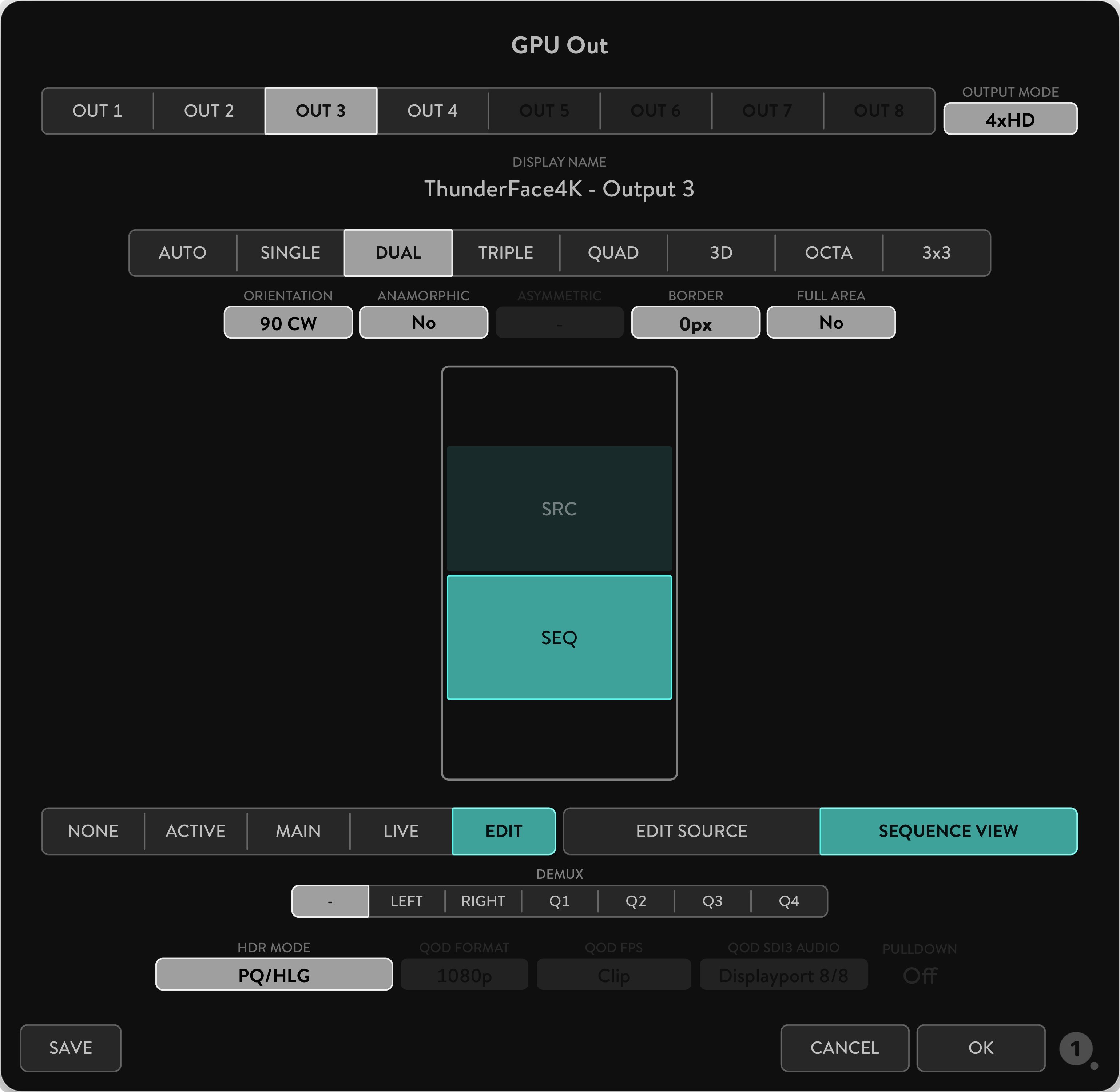
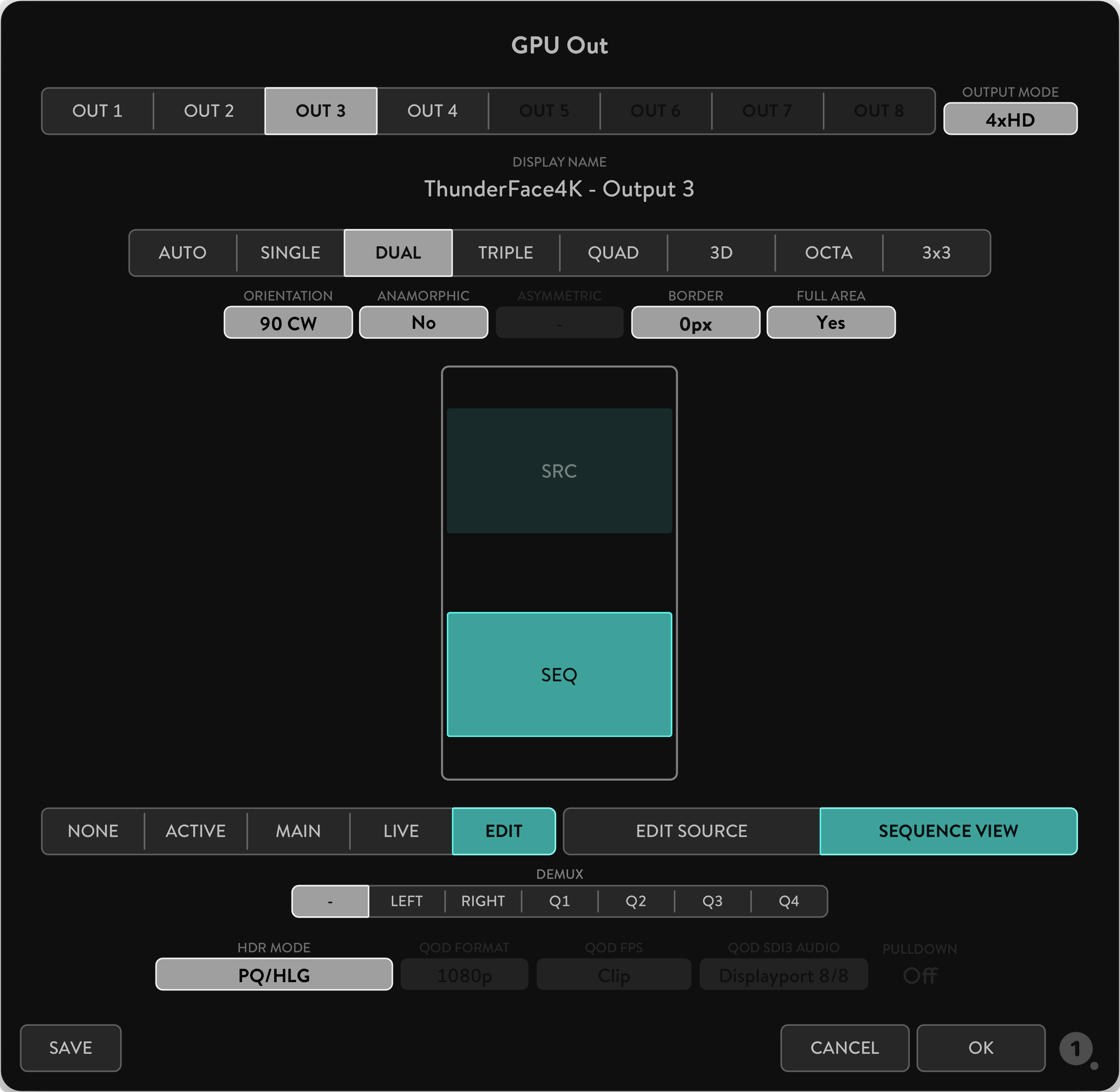
FULL AREA selector determines the layout distribution of the Views. By default, the selector is set to NO distributing the Views from the center of the screen. If you set it to YES, Views will be distributed to cover the whole screen, which may create gaps between the Views. The effects of this selector are most apparent when changing orientation to 90 degrees or using the ANAMORPHIC option.
|
|
HDR MODE
To read more about QTAKE SDI HDR output, refer to this section of the QTAKE Pro User guide.
- PQ/HLG - Outputs HDR using the selected PQ or HLG color space without Dolby Vision metadata.
- Dolby Vision® Meta - Adds Dolby Vision metadata with SDI signal that can be read by compatible devices (e.g. eCMU, another QTAKE system).
- Dolby Vision® iCMU - Applies iCMU for SDI output. This mode does not require an HDR monitor.
SAVE BUTTON
The button allows you to save the current GPU OUT configuration as the default setting. Once saved, this configuration becomes the preset for all new projects, eliminating the need to manually configure GPU OUT settings each time.
This function streamlines your workflow by automatically loading your preferred GPU OUT configuration whenever you initiate a new project, ensuring efficiency and consistency.
ThunderFace PREFERENCES
These QTAKE preferences are relevant to the operation of ThunderFace 4K Duo+. Use the PREFERENCES button in the INFO menu to open the window with preferences and set the required options.
Alternatively, you can use the Text Edit application to edit the content of the preference file. QTAKE preferences file resides in the [System volume]/Users/[User name]/Library/Application Support/com.in2core.QtakePro/Prefs folder. If you delete this file, QTAKE will recreate one with the default settings. Changes will take effect next time QTAKE starts.
GPU group
Enable GPU Output
Set to =1 to enable QTAKE graphics card output.
Required for ThunderFace GPU output operation.
Full Range Video
Set this to =1 to enable full range video processing.
Default value (=0) uses SMPTE levels (legal range).
Legal Range GPU Output
Set to =1 to enable legal range GPU output.
GUI group
GPU Out 1 Label=GPU-OUT 1
GPU Out 2 Label=GPU-OUT 2
GPU Out 3 Label=GPU-OUT 3
GPU Out 4 Label=GPU-OUT 4
Use this setting to edit the GPU-OUT label in the VIEW toolbar (i.e. DIRECTOR, CLIENT).
TROUBLESHOOTING
A) If macOS or QTAKE does not detect the ThunderFace 4K Duo+, use the following steps to reset it:
- Quit QTAKE
- Power off ThunderFace 4K Duo+
- Power on ThunderFace 4K Duo+
- Start QTAKE
B) If you are using a master power button for your entire video rig and experience a detection issue, it may be due to a power supply fluctuation during boot-up. We recommend a power cycle of the ThunderFace 4K Duo+ as described above, or as a preventative measure, ensure the unit is the last component in your rig to be powered on.
C) If QTAKE does not show ThunderFace 4K Duo+ SDI inputs, confirm that IN & OUT firmware and its required driver are installed and that the driver has been approved in macOS System Settings. Power-cycle ThunderFace, restart QTAKE, and check Project Settings > Video Input. GPU OUT settings do not enable SDI capture.
D) If dropped frames occur while using simultaneous SDI input and output, reduce the active stream count, resolution, or frame rate.
SUPPORT
Need help? For technical inquiries and support, please contact our support.
Important Safety Instructions
- Carefully read and follow all instructions and keep them for future reference.
- Do not use this device with water.
- Clean only with a dry cloth.
- Do not use this device with any heat sources or near fire.
- Protect all cables.
- Refer all servicing to qualified service personnel. * Servicing is required when the device has been damaged in any way, either by physical or electrical means.
- This product uses semiconductors that can be damaged by electrostatic discharge (ESD). When handling, care must be taken so that the device is not damaged. Damage due to inappropriate handling is not covered by the warranty.
.png)
Disposal Information
ThunderFace 4K Duo+ shall be disposed of separately from household waste. When it reaches its end of life, take it to a collection point designated by local authorities. Separate collection and recycling at the time of disposal will help conserve natural resources and ensure that ThunderFace 4K Duo+ is recycled in a manner that protects human health and the environment. For more information about electronic and electrical waste equipment that will ensure the safety of human health and environment disposal, recovery, and collection points, please contact your local city center, household waste disposal service, reseller, or manufacturer of the equipment.

EU compliance Statement

INCORE hereby declares that this eletrical device is in compliance with the essential requirements of 2014/30/EU Electromagnetic Compatibility Directive.
Download copy of EU Declaration of conformity.
COMPLIANCE
If for import of ThunderFace 4K Duo+ to or it’s operation within any country other than Slovakia it is required to fulfill additional legal requirements than those provided by the manufacturer herein, you agree to obtain all permissions and for legal compliance.
Copyright and Legal Notices
ThunderFace 4K Duo+ is a trademark of IN2CORE s.r.o.
All other trademarks are the property of their respective owners.